What is a custom page?
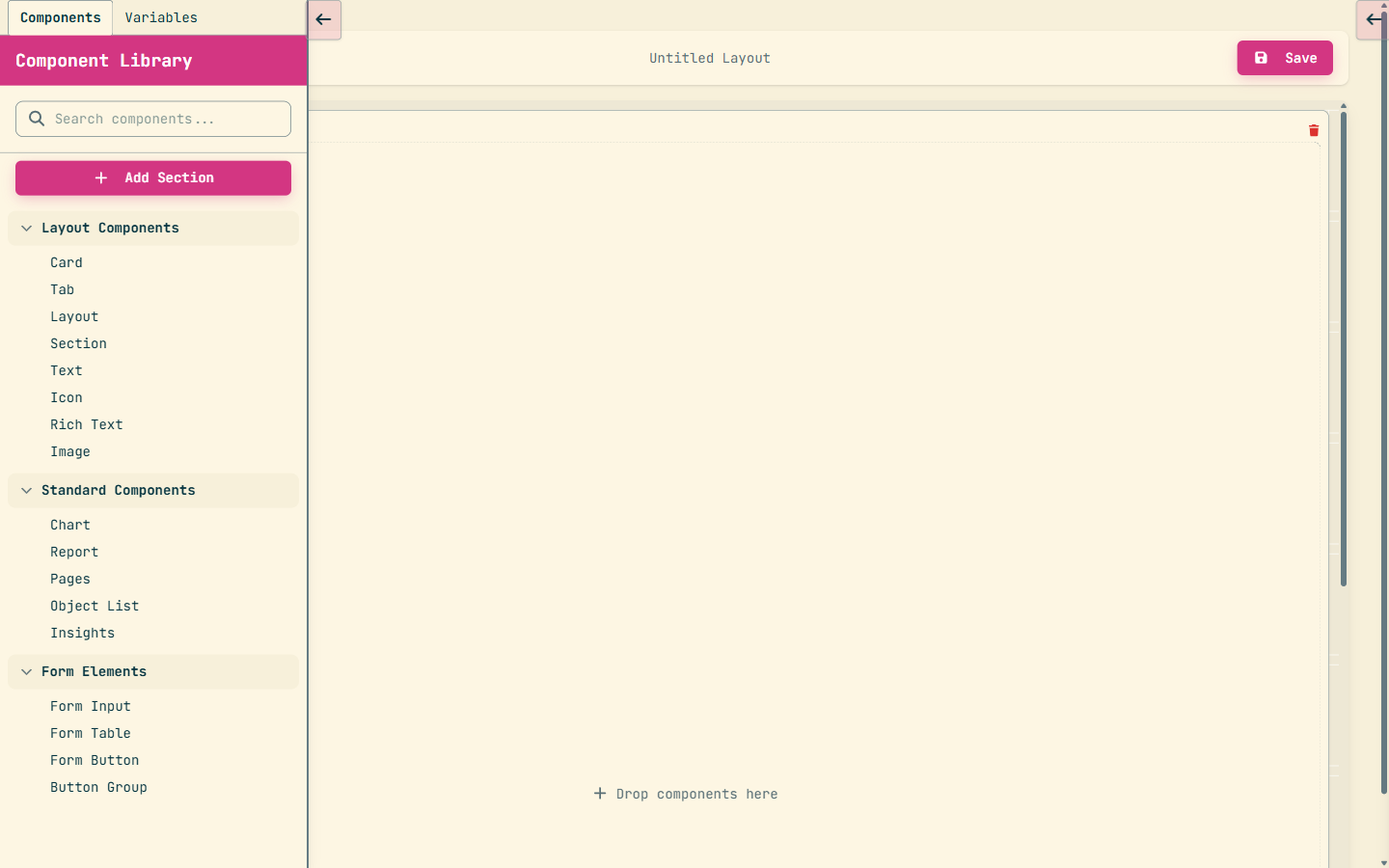
A custom page is a standalone screen you build as a single rtext component — not a tree of cards, forms and layout widgets.
That single fact is the whole foundation of this trail. On many platforms a “page” is assembled by dragging dozens of components onto a canvas. Here it is the opposite: you place one rtext component, and inside it you write the screen yourself across three separate fields.
Those three fields are config.html (the markup, with {|placeholder|}
templates), config.css (styles, scoped to this page), and config.js
(logic, written against the page's ctx API). They are fields on the rtext
component, not <script> or <style> tags embedded in
the HTML.
A page is not built from card / form / layout components, and the JS and CSS
do not live in <script> / <style> blocks
inside the HTML. It's one rtext, three fields: config.html, config.css,
config.js.
Page vs. function vs. layout
Three things on this platform are easy to confuse. Keep them straight from the start:
- A function is server-side logic — the work, built by wiring nodes (that's Trail 01). It has no screen of its own.
- A record layout arranges the fields of an existing record — it decorates data that already exists on an object.
- A custom page is a bespoke screen you design from scratch — its own markup, styles and logic, not tied to any one record's field set.
So the question is never just “do I need a screen?” — it's “do I need a bespoke screen, or would a function or a record layout do the job?” The next two units answer exactly that.
Custom pages are managed in the Pages area of your org, alongside Objects, Functions and Layouts. You'll build your first one in Module P2; this module is about knowing when and why before you reach for the rtext.
The Zero Rule
The most important thing to learn about pages is when not to build one. More custom pages are built by mistake than for any good reason.
The mistake almost always looks the same: someone needs a button to do something — convert a record, approve it, send an email, generate a document, bulk-update a list — and they reach for a custom page to make it happen. That is the wrong tool.
Any action triggered from a button — convert, approve, send, generate, bulk
update, anything — is built as a function with call context
layout_button. It is never a standalone page. If the action needs to ask the
user something part-way through, the function adds a page node inside
itself — it does not become a page.
Notice the two different uses of the word “page” here, because mixing them up is the whole trap:
- A standalone custom page — the rtext screen this trail is about — is a destination a user navigates to.
- A page node is a single node inside a function that pauses the flow to ask the user for input mid-action. It is part of the function, not a screen you maintain separately.
Right vs. wrong, side by side
A button that performs an action and, if needed, prompts the user along the way:
Building a standalone custom page just to host an action and then calling a function back from it is the wrong shape. The button should invoke the function directly; if the flow needs to ask a question, that's a page node inside the function — not a page you build and wire up by hand.
You met this rule in Trail 01 as “buttons are functions”. It's the same rule, seen from the pages side. Interactive functions — the ones with page nodes that pause to ask the user something — are covered in detail in Trail 01, Module 06.
A quick test: is there a button to attach this to? If yes, it's almost certainly a function. The only times a page is right are the times there's no button to begin with — which is exactly the next unit.
When a page is the answer
A standalone custom page is the right tool in exactly five situations. If your need isn't one of these five, it almost certainly isn't a page.
What every one of them has in common: there's no record button to hang the work on, so a destination screen genuinely is the answer.
A screen reached from a sidebar, app-home, menu or tab entry point. There is no record and no button to attach to — the page itself is the destination users navigate to.
Charts and reports presented as the persistent main UI of a destination — a home screen or analytics view a user opens and reads, rather than an action they fire.
A form for visitors who are not logged in. With no authenticated user there is no button context at all — so a standalone page that captures input and creates a record is exactly right.
A screen where persistent filtering and browsing is the primary interaction — type, filter, scan results, refine. The searching is the point of the screen, not a one-shot action.
A host page that orchestrates other pages, or a sub-page embedded inside hosts — a bespoke feature too large to be a single action and with no natural record button.
Read those five again with the Zero Rule in mind and a pattern jumps out: every one of them lacks a record button. A dashboard isn't fired from a record; a public form has no logged-in user; a search screen is a place you go, not a thing you click once. That absence is the signal.
If your need doesn't clearly match one of these five, it is not a page — build a function instead. The five exceptions are a short, closed list on purpose: pages are the exception, functions are the default.
For developers — why “no button” is the real test
The call contexts you learned in Trail 01 (layout_button, trigger,
scheduled_job, page_onload, page_formButton) are the
mechanical reason the five exceptions exist. Four of the five have no record and no
layout_button context to receive a recordId — a dashboard, a menu
destination, a public form, a search screen. The page instead supplies its own
page_onload function to fetch data on open, and a page_formButton
function to handle any submit.
So the heuristic “is there a button?” isn't a style preference — it maps directly onto whether
a layout_button context is even available. No button context, and the work has a UI?
That's when a page earns its place.
The shape of a page
Every custom page has the same shape: first you declare what kind of page it is, then you fill the three rtext fields. Get the shape and the rest is detail.
Step one — declare your intent
Exactly as with functions, good page builders say out loud what they're making before they place anything. The shape of a page intent is one sentence:
INTENT: This is a Data Entry page that lets a visitor
        submit a new Contact.
That declaration picks an archetype — the kind of page you're building. There are five, and you'll meet all of them in full in Module P3:
- Data Entry — capture input and create a record.
- Data Display — present data read-only (a dashboard is a kind of display page).
- Edit Form — load an existing record, change it, save it.
- Search + Results — filter and browse a set of records.
- Multi-page — a host page that composes other pages into one feature.
Step two — fill the three fields
With the archetype named, you author the rtext's three fields. Each has one job:
config.htmlholds the markup, with{|placeholder|}templates where live values will be filled in.config.cssholds styles, scoped to this page so they don't leak elsewhere.config.jsholds the logic, written against the page'sctxAPI — where every line is a bind, a watch or an invoke.
Here is the whole shape of a minimal page — tiny on purpose, just to show how the three fields fit together:
<div class="contact-form">
  <input data-aqua="name" placeholder="Your name">
  <p>Hello, {|name|}</p>
</div>.contact-form { padding: 20px; }
.contact-form input { width: 100%; }// bind the input to a value the {|name|} placeholder reads
ctx.bind('name');Notice the markup uses {|name|} rather than wiring values in JavaScript inline. The
HTML stays declarative; config.js connects it to data through ctx. The
three fields stay separate — that separation is what keeps a page readable.
You now know what a page is, when to build one, and the shape every page shares. In
Module P2 you'll build one end to end. For the deep dive on the rtext model —
ctx, placeholders, binds and watches in full — see Trail 03, “Master
rtext”. Pass the checkpoint to claim your Page Maker stamp.
Earn the Page Maker stamp
Answer all four to lock in Module P1.