What is a function?
A function is a piece of server-side logic you build by wiring together nodes on a visual board — no code editor required.
Each node does one job: look up records, set a value, make a decision, loop over a list, create or update data, send an email. You connect them in order, and when the function runs, control flows from the start node down through the path you drew.
Because it runs on the server, a function can safely touch your data, enforce rules, call other systems, and return a result — the same way whether it was triggered by a button, a record save, or a nightly schedule.
A formula is a one-line expression (like IF(amount > 1000, 'High', 'Low'))
used inside a node. A page is a screen a user looks at. A
function is the logic that does the work. You'll mix all three, but this
trail is about functions.
When do you reach for a function?
- A button on a record or list — “Convert Lead”, “Approve”, “Send quote”.
- An automation that fires when a record is created, updated or deleted.
- A scheduled job that runs every night or every hour.
- Page logic — loading data into a custom page, or handling its form submit.
Those four situations map onto five call contexts, which is exactly what the next unit is about.
The five call contexts
Every function declares how it will be called. The call context decides what data flows in, what it may return, and which kinds of nodes are allowed.
Runs automatically when records are inserted, updated or deleted. Receives the list of affected records. Used for automation rules.
Runs when a user clicks a button on a record, list view or related list. Receives the recordId (and any params you define).
Runs on a schedule (cron). No inputs, no UI — just does its work in the background.
Runs when a custom page opens, to fetch and shape the data the page needs. Data flows out through outputs.
Runs when a user submits a form on a custom page. Receives the page's data object.
Any action triggered from a button (“convert”, “approve”, “generate”, “bulk update”) is built
as a function with context layout_button — never as a standalone
page. If the action needs to ask the user something mid-flow, it adds a page node
inside the function. Keep this in your back pocket; Module 06 makes it concrete.
For developers — the input parameters each context receives
// trigger — always a LIST, even for one record
trigger:         [{name:'records', datatype:'object', objectApi:'<api>', isList:true}]

// layout_button — the clicked record's id, plus anything you add
layout_button:   [{name:'recordId', datatype:'text'}, {name:'status', datatype:'text'}]

// page form submit — the page's data object
page_formButton: [{name:'data', datatype:'object', objectApi:'<api>'}]

// these take no inputs
page_onload:     []   // data flows OUT via outputs
scheduled_job:   []   // no inputs or outputs
Notice trigger always hands you a list. That single fact shapes
how every trigger function is built — you loop over the records. More on that in Module 06.
Tour of the function board
This is where you'll spend your time. Open Setup ▸ Functions (or the Functions area of your org) and you land on the board.
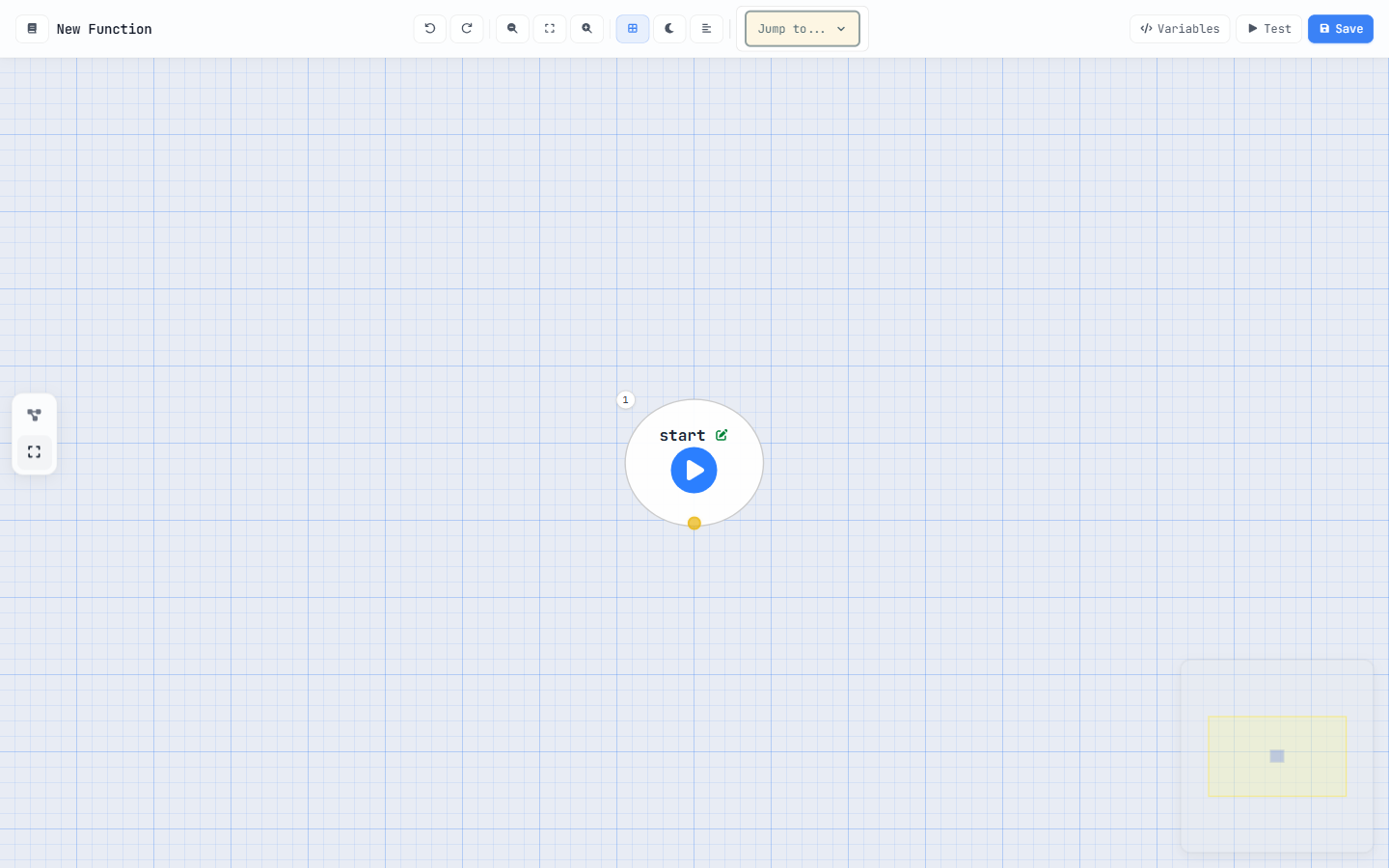
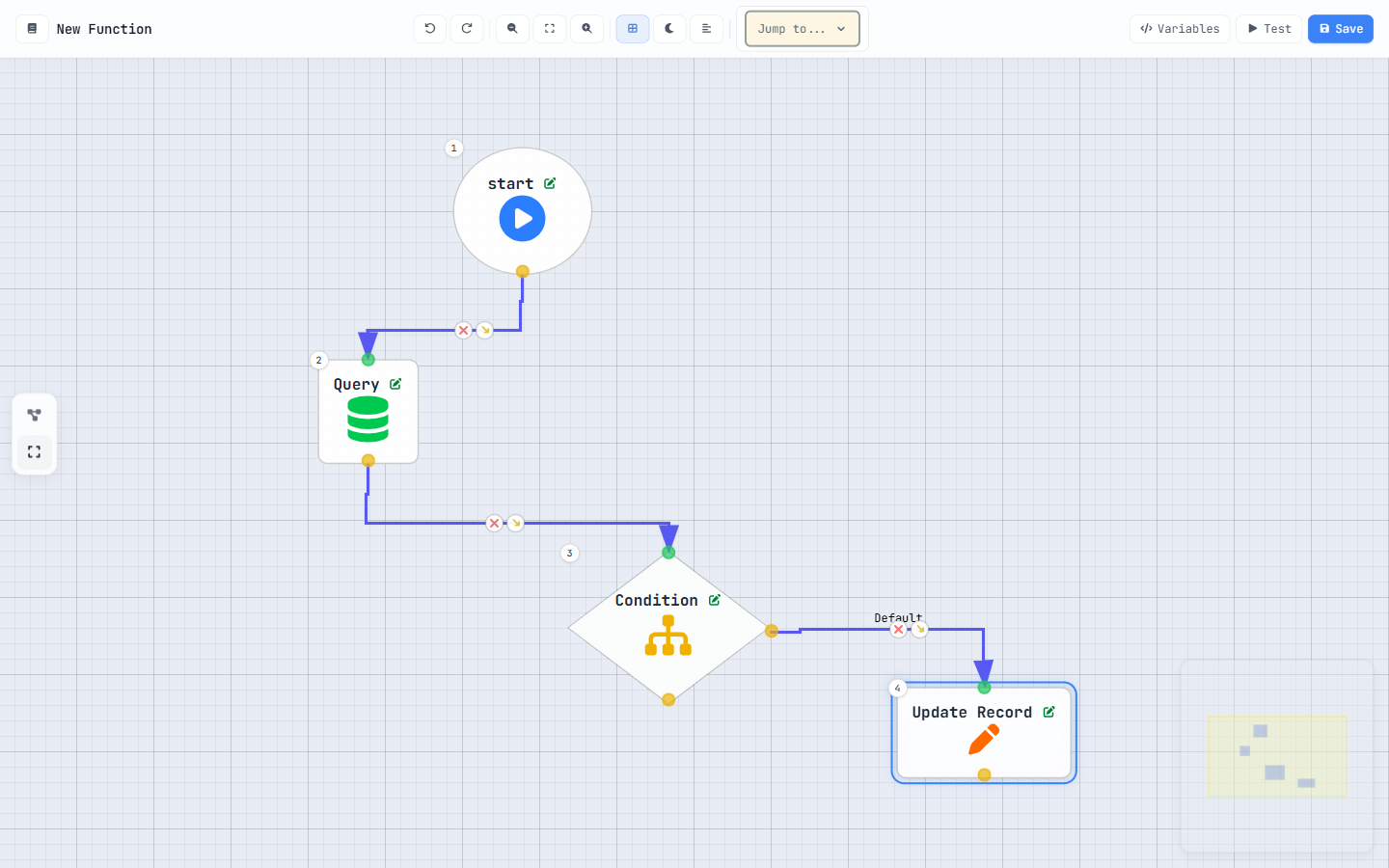
The toolbar, left to right
- Node Reference — opens the catalog of built-in functions (more below).
- Undo / Redo — Ctrl+Z is your friend.
- Zoom out / fit / in, Minimap, Theme, and Descriptions toggles — tidy up a big flow.
- Jump to… — leap straight to any node by name in a large function.
And on the right, the three buttons you'll use constantly:
The Node Reference
Click Node Reference and a searchable catalog slides in — every built-in
standard function grouped by category (String, Date, List, OAuth, AI, GST and more).
These are the ready-made building blocks you call from a functionCall node.
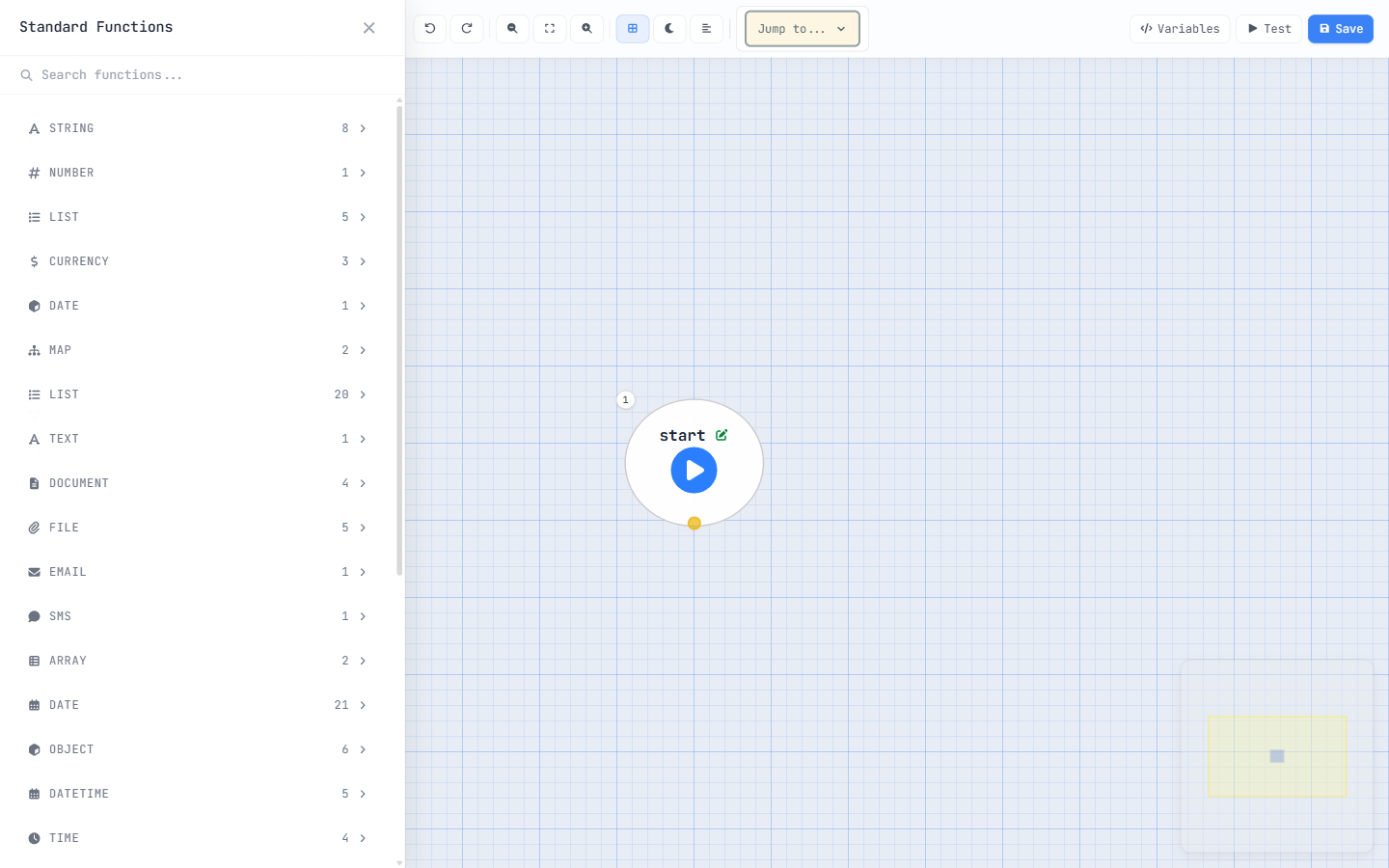
Every standard function in that panel is also documented, searchable, in this site's Function Reference — 131 functions and 64 formulas.
Nodes, variables & compile
Three concepts make up every function: the nodes you place, the variables that carry data between them, and the compile step that brings it to life.
The node palette
These are the node types — the verbs of a function:
There is no node called “DML”. To write data you use the specific
create, update or delete node.
Variables carry the data
Open the Variables panel to declare the values your flow works with —
an object (a record), a list, plain text,
number, boolean, date or currency.
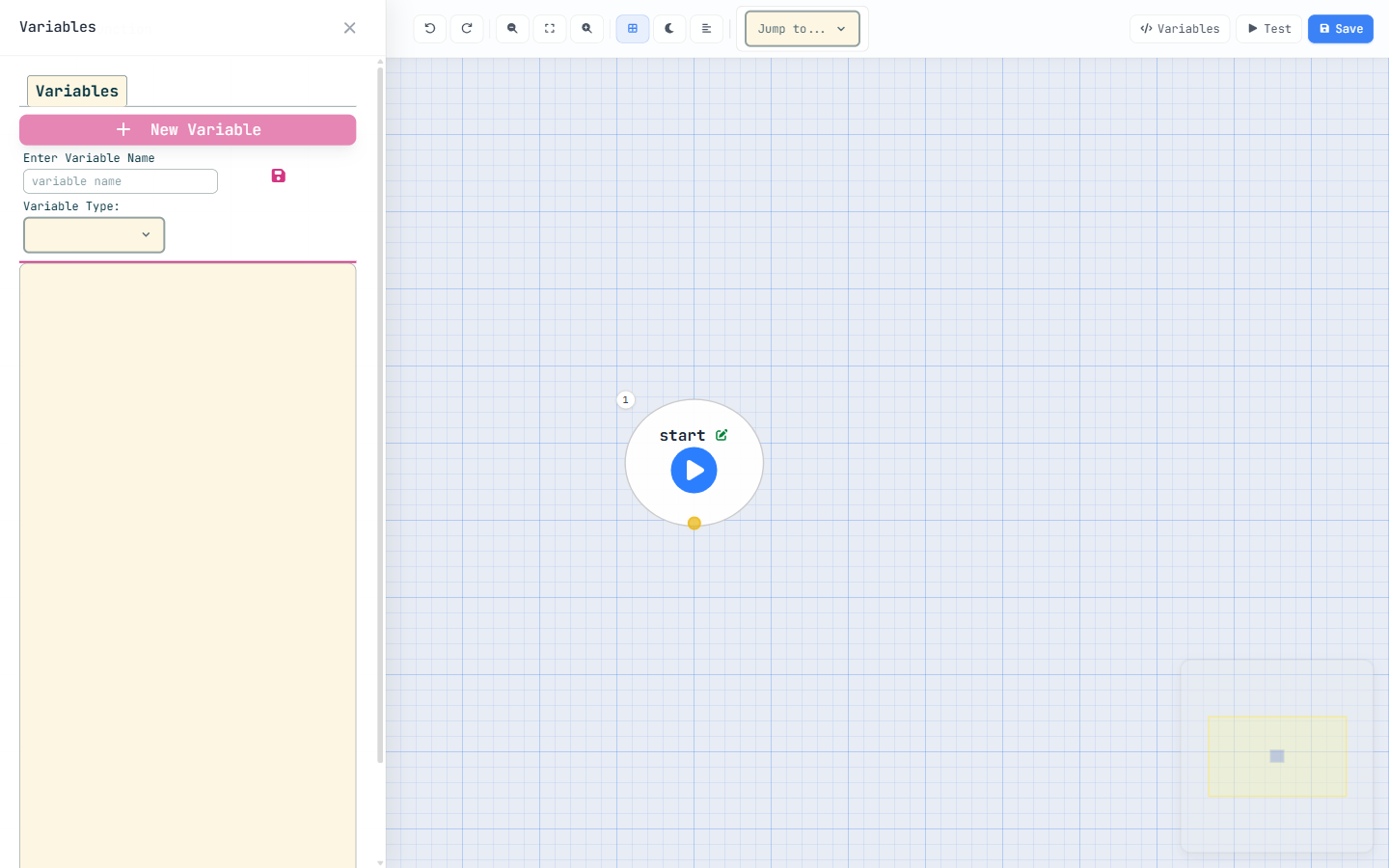
$currentUser).Formulas vs. standard functions
Two different toolkits that are easy to mix up:
- Formulas — inline expressions in an assignment:
IF,ISBLANK,ROUND,LEN,ADDDAYS… - Standard functions — flow nodes from the catalog:
addToList,sendEmail,concatenate,split…
Never mix them: addToList is not a formula, and IF is
not a node. The Reference labels which is which.
Compile = activate
When you press Save, the platform compiles your flow. Compiling is activation — there's no separate “turn it on” step. If something in the flow is incomplete, compile tells you exactly what to fix.
That's the whole mental model: nodes do the work, variables carry data, compile makes it live. Time to prove it — pass the checkpoint and earn your first stamp.
Earn the Foundations stamp
Answer all five to lock in Module 01.